Showing posts with label XML XHTML. Show all posts

How to Add a Logo to Your Blog on Blogger

There are many simple tools that give excellence for blogs, including the design of  template and colors ... etc., today we will learn how to add a logo to your blogger blog , which is an image or text excellence your blog from the rest of other blogs, and the benefits of logo is keeping visitors to your blog and also give her aesthetic.

1. Go to "Blogger Dashboard" > "Layout" "Edit" like the following screen

2. After click on "Editwill appears for you this pop up.
3. Click on ''Choose File'' and upload your logo image from you computer or paste your image url in "From the web. Paste an image URL below" box.
4. Select ''Instead of this description" like the above screen.
5. Finally click on save button.

How to Show Post Title Only on Home Page in Blogger

I will explain to you in this tutorial how to show post title only in the Home page in your blogger blog. this a simple code works on show titles only and is not a title and post together, where the title appears on the home page of the blog just by clicking on it redirects to the main post, and to be able to install this code in your blog, follow these simple steps:


1. Login to your Blogger Dashboard > Template
2. Download a copy of your template
3. Now click on Edit HTML
4. Use Ctrl + F to find </head> and paste the following code above/before it.
<style type='text/css'>

<b:if cond='data:blog.url == data:blog.homepageUrl'>

.post {
margin:.5em 0 1.5em;
border-bottom:0px dotted $bordercolor;
padding-bottom:1.0em;
height:50px;
}
.post h3 {
margin:.25em 0 0;
padding:0 0 4px;
font-size:20px;
font-family:Tahoma,Georgia,Century gothic,Arial,sans-serif;
font-weight:normal;
line-height:1.4em;
color:#cc6600;
}

.post h3 a, .post h3 a:visited, .post h3 strong {
display:block;
text-decoration:none;
color:#cc6600;
font-weight:normal;
}

.post h3 strong, .post h3 a:hover {color:#333333;}

.post-body {display:none;}
.post-footer {display:none;}
.comment-link {display:none;}
.post img {display:none;}
.post blockquote {display:none;}
.post blockquote p {display:none;}
h2.date-header {display:none;}
.post-labels {display:none;}
.post-rating {display:none;}

</b:if>

</style>
5. Finally, click on Save the template.
Enjoy and happy blogging! ;)

How to Disable Copying Text From Your Blog?

Exclusive content is usually under the eyes of thieves, who steal these posts and articles without permission or even the source said, so I've written this post to stop this process.

1. Go to Blogger Dashboard > Template
2. Download a copy of your template
3. Now click on Edit HTML
4. Use Ctrl + F to find <head> and paste the following code after it.
<!--- www.bbloggertutorials.Blogspot.com Disable Copy and Paste-->
<script language='JavaScript1.2'>
function disableselect(e){
return false
}
function reEnable(){
return true
}
document.onselectstart=new Function (&quot;return false&quot;)
if (window.sidebar){
document.onmousedown=disableselect
document.onclick=reEnable
}
</script>
5. Save template.
That is it!!

How to Change Default Avatar in Blogger Comments

In this tutorial we will learn how to change or customize the avatar anonymous commentators, This enables us to add an image in blog comments instead the name of unknown without a picture.

How to Change Default Avatar in Blogger Comments
1. Go to Blogger Dashboard > Template
2. Download a copy of your template
3. Now click on Edit HTML
4. Use Ctrl + F to find </body> and paste the following code above/before it.
 <script src='http://code.jquery.com/jquery-latest.js'/>
<script>
$(&quot;img[src=&#39;http://img1.blogblog.com/img/anon36.png&#39;]&quot;)
.attr(&#39;src&#39;, &#39;https://blogger.googleusercontent.com/img/b/R29vZ2xl/AVvXsEgmt2xBO3MkumIjakVqgxzUnzOFlVNY-w8POepOCMO2J49-I4SFQHE6PNfBhOTUi63mSD1VUrWME-dSWAhXY4xBUAFUn0M73-ZKO9DIO5jdMXQ2WxGGr1oo4OPU3uTivHVezLhiM-Avsy8/s1600/default_avatar.gif&#39;)
.ssyby(&#39;blank&#39;)
</script>
<script src='http://code.jquery.com/jquery-latest.js'/>
<script>
$(&quot;img[src=&#39;http://img2.blogblog.com/img/b36-rounded.png&#39;]&quot;)
.attr(&#39;src&#39;, &#39;https://blogger.googleusercontent.com/img/b/R29vZ2xl/AVvXsEgCwy74ieiXFU5QRWWpnd1GkTREDrTadSUUHBtiAvuH4oTvfZivSrMZbQL3WGxOB1oH5jzYrn7jwxkzIRcBqVbXoJP3R9HEB_Tko8gvCp1W8Zy4lXZPWJCTKhUOx6mbSTQpONxRKE9gkLw/s1600/blogger-user.png&#39;)
.ssyby(&#39;blank&#39;)
</script>
5. Save template.
Note:
For Anonymous users: Replace the code in green with the url address of your image.
For Blogger users: Replace the URL in blue with your own.
You can choose one from these below (copy the url address):


1- https://blogger.googleusercontent.com/img/b/R29vZ2xl/AVvXsEhlVxZ3L17rUh8s68zcUTT6twgg1VhyU0vtmTzaGjusoDgS2fTIzSzNg40i47UJ9fuyg8hUdj5eSH6psq9VQRDRM4CfuCYDW6p7REREIhyNfhuGiJ-rUO8PYXosfy8W2OCAdOK0TNBHItQ/s256/blogger-icon.png


5- https://blogger.googleusercontent.com/img/b/R29vZ2xl/AVvXsEj7OizvP6Vr38OxA8WEmByUJtURWG5J-Po42CJ5cft8zUWR5NJGhtHKnJd4SY1K8gbVwVjHKQo2HCgtxAZbIqCH5rVlFzmWIsvvltidtqw5zgHNMhyphenhyphensIgzyHVHLjaUwHMlwB7hhfV4cbnE/s138/facebook.gif

I hope you enjoy and happy blogging. ;)

Top 20 Best Free Blogger Templates

In a previous blog post touched on Top 10 Best Blogger Templates Sites 
and Today, I would choose you top 20 best free blogger templates for free download . You can give your blog that professional look by installing best free blogger templates and gain the confidence of visitors to your blog.
Top 20 Best Free Blogger Templates   

1. Sporty Magazine 2 Blogger Template


Live Demo         Download 

2. Template-dir Blogger Template


Live Demo         Download 

3. Johny Sompret Banget Blogger Template


Live Demo         Download 

4. Sensational Blogger Template


Live Demo         Download 

5. Lugas Blogger Template


Live Demo         Download 

6. Galauness Blogger Template

Live Demo         Download 

7. Johny Coba Dulu Blogger Template


Live Demo         Download 

8. 
Metro Blogger Template


Live Demo         Download 

9. Johny Simple Magazine 2  Blogger Template


Live Demo         Download 

10. Galleryzed BloggerTemplate


Live Demo         Download 

11. Responsive Templates

Live Demo         Download 

12. Blogsilve Blogger Template


Live Demo         Download 

13. Brown Gallery Press Blogger Template

Live Demo         Download 

14. Expand List Free Premium Blogger Template

Live Demo         Download 


15. Pinfinity (Pinterest Like) Blogger Template
Live Demo         Download 

16. Bresopnsive Blogger Template

Live Demo         Download 

17. Blogism Elegant Blogger Template
Live Demo         Download 

18. Grizzled 
Blogger Template


Live Demo         Download 

19. Facebook Blogger Template


Live Demo         Download 

20. 
Max Mag Blogger template


Live Demo         Download 

Uh, I'm really tired. XD
In the end I hope you enjoy and happy blogging. ;)

How to Add Blogger`s Official Contact Form to Your Blog

Blogger launches officially This is a wonderful very important gadget for any blogger,If your blog visitors need any help or suggestion regarding your posts or articles, they will try to contact with you.


How to Add Contact Form To Your Blog

Step 1
1. Login to your blogger dashboard--> Layout-->'Add A Gadget'
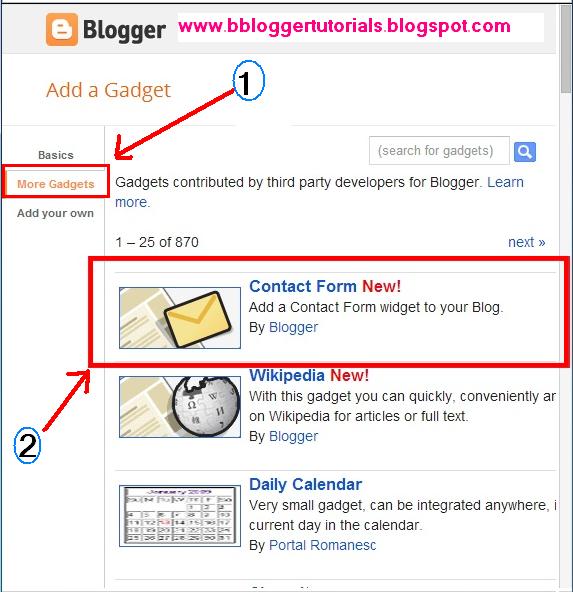
2. Now click on More Gadget--> Select Contact Form
3. Click  save.

Step 2
1. Login to your blogger dashboard--> Pages
2. Now click on New Page--> Select Blank Page
3. Now Click on HTML an Paste below code in it.
<div class='form'> 
<!-- Custom Contact Form By WG Starts -->
<form name='contact-form'>
<!-- Name Field -->
<input class='contact-form-name' id='ContactForm1_contact-form-name' name='name' value="Name" size='30' type='text' onblur='if (this.value == &quot;&quot;) {this.value = &quot;Name&quot;;}' onfocus='if (this.value == &quot;Name&quot;) {this.value = &quot;&quot;;}' /> 
<p></p>
<!-- Email ID Field -->
<input class='contact-form-email' id='ContactForm1_contact-form-email' name='email' value="Email ID"  size='30' type='text' onblur='if (this.value == &quot;&quot;) {this.value = &quot;Email ID&quot;;}' onfocus='if (this.value == &quot;Email ID&quot;) {this.value = &quot;&quot;;}'/> 
<p></p>
<!-- Message Field -->
<textarea class='contact-form-email-message'  id='ContactForm1_contact-form-email-message' name='email-message'  value='Leave Your Message..'  onblur='if (this.value == &quot;&quot;) {this.value = &quot;Leave Your Message..&quot;;}' onfocus='if (this.value == &quot;Leave Your Message..&quot;) {this.value = &quot;&quot;;}'></textarea> 
<p></p>
<!-- Clear Button --> 
<input class='WG-btnLogin' type='reset' value='Clear'/> 
<!-- Send Button -->  
<input class='WG-btnLogin' id='ContactForm1_contact-form-submit' type='button' value='Send'/> 
<p></p>
<!-- Validation --> 
<div style='text-align: center; max-width: 222px; width: 100%'> 
<p class='contact-form-error-message' id='ContactForm1_contact-form-error-message'></p> 
<p class='contact-form-success-message' id='ContactForm1_contact-form-success-message'></p> 
</div> 
</form>
<!-- Custom Contact Form By WG Ends --> 
</div>
4. Publish that Page.

Step 3
1. Now go to Blogger Dashboard > Template
2. Download a copy of your template
3. Click on Edit HTML
4. Find below code in your template (Press Ctrl + F)
   ]]></b:skin>
5. Add below code just above it,

#ContactForm1

{

display: none ! important;

}
6. Now Search for </head> (Press Ctrl + F)
7. Paste below code just before </head>

<b:if cond='data:blog.pageType == "static_page"'> 

  <style> 

#ContactForm1{ display:none!important;} 

  </style> 

</b:if>

<style>
/*---- Compatible contact Form by WG -----*/
.contact-form-name, .contact-form-email, .contact-form-email-message { 
max-width: 220px; 
width: 100%; 
font-weight:bold; 
}
      
.contact-form-name { 
background: #FFF url(https://blogger.googleusercontent.com/img/b/R29vZ2xl/AVvXsEjvpK_gMmNRFPPc40o0_oW57KnKKaBKJSHDu75roGMU54EbBeBbd6sKHvRcnfVbqppfE3kAKH_ELgU0Zo7QwclgGvMQ_g1RsoFGKvLTLo0d_hrxqXZPGkevvBo-9wWfVa0IKkKTWEsgHUw/s320/name.png) no-repeat 7px 8px; 
background-color: #FFF; 
border: 1px solid #ddd; 
box-sizing: border-box; 
color: #A0A0A0; 
display: inline-block; 
font-family: Arial,sans-serif; 
font-size: 12px; 
font-weight:bold; 
height: 24px; 
margin: 0; 
margin-top: 5px; 
padding: 5px 15px 5px 28px; 
vertical-align: top;
     
.contact-form-email { 
background: #FFF url(https://blogger.googleusercontent.com/img/b/R29vZ2xl/AVvXsEj_htSTOC91CpNjG6mKVaNskqH20-4aJgc5SzbweAIvBg9lDLCLO-SMC4ESpDNrZKCx4TjS0JqQB9mQjfGCBSqOAlSzXvqjxUFdAMHy-oQAxgX8U4hBHMOiHejfoB03GGq4zlIfUtEsEno/s320/email.png) no-repeat 7px 10px; 
background-color: #FFF; 
border: 1px solid #ddd; 
box-sizing: border-box; 
color: #A0A0A0; 
display: inline-block; 
font-family: Arial,sans-serif; 
font-size: 12px; 
font-weight:bold; 
height: 24px; 
margin: 0; 
margin-top: 5px; 
padding: 5px 15px 5px 28px; 
vertical-align: top;
}

.contact-form-email:hover, .contact-form-name:hover{ 
border: 1px solid #bebebe; 
box-shadow: 0 1px 2px rgba(5, 95, 255, .1);

padding: 5px 15px 5px 28px;
}
.contact-form-email-message:hover { 
border: 1px solid #bebebe; 
box-shadow: 0 1px 2px rgba(5, 95, 255, .1); 
padding: 10px; 
}
.contact-form-email-message { 
background: #FFF; 
background-color: #FFF; 
border: 1px solid #ddd; 
box-sizing: border-box; 
color: #A0A0A0; 
display: inline-block; 
font-family: arial; 
font-size: 12px; 
margin: 0; 
margin-top: 5px; 
padding: 10px; 
vertical-align: top; 
max-width: 350px!important; 
height: 150px; 
border-radius:4px; 
}

.contact-form-button { 
cursor:pointer; 
height: 32px; 
line-height: 28px; 
font-weight:bold; 
border:none; 
}

.contact-form-button { 
display: inline-block; 
zoom: 1; /* zoom and *display = ie7 hack for display:inline-block */ 
*display: inline; 
vertical-align: baseline; 
margin: 0 2px; 
outline: none; 
cursor: pointer; 
text-align: center; 
text-decoration: none; 
font: 14px/100% Arial, Helvetica, sans-serif; 
padding: .5em 2em .55em; 
text-shadow: 0 1px 1px rgba(0,0,0,.3); 
-webkit-border-radius: .5em; 
-moz-border-radius: .5em; 
border-radius: .5em; 
-webkit-box-shadow: 0 1px 2px rgba(0,0,0,.2); 
-moz-box-shadow: 0 1px 2px rgba(0,0,0,.2); 
box-shadow: 0 1px 2px rgba(0,0,0,.2); 
.contact-form-button:hover { 
text-decoration: none; 
.contact-form-button:active { 
position: relative; 
top: 1px; 
}

.WG-btnLogin
{
    -moz-border-radius:2px;
    -webkit-border-radius:2px;
    border-radius:15px;
    background:#a1d8f0;
    background:-moz-linear-gradient(top, #badff3, #7acbed);
    background:-webkit-gradient(linear, center top, center bottom, from(#badff3), to(#7acbed));
    -ms-filter: "progid:DXImageTransform.Microsoft.gradient(startColorStr='#badff3', EndColorStr='#7acbed')";
    border:1px solid #7db0cc !important;
    cursor: pointer;
    padding:11px 16px;
    font:bold 11px/14px Verdana, Tahomma, Geneva;
    text-shadow:rgba(0,0,0,0.2) 0 1px 0px; 
    color:#fff;
    -moz-box-shadow:inset rgba(255,255,255,0.6) 0 1px 1px, rgba(0,0,0,0.1) 0 1px 1px;
    -webkit-box-shadow:inset rgba(255,255,255,0.6) 0 1px 1px, rgba(0,0,0,0.1) 0 1px 1px;
    box-shadow:inset rgba(255,255,255,0.6) 0 1px 1px, rgba(0,0,0,0.1) 0 1px 1px;
    margin-center:12px;
    float:center;
    padding:7px 21px;
}

.WG-btnLogin:hover,
.btnLogin:focus,
.btnLogin:active{
    background:#a1d8f0;
    background:-moz-linear-gradient(top, #7acbed, #badff3);
    background:-webkit-gradient(linear, center top, center bottom, from(#7acbed), to(#badff3));
    -ms-filter: "progid:DXImageTransform.Microsoft.gradient(startColorStr='#7acbed', EndColorStr='#badff3')";
}
.WG-btnLogin:active
{
    text-shadow:rgba(0,0,0,0.3) 0 -1px 0px; 
}
</style>

      <!--[if IE 9]> 
    <style> 
    
.contact-form-name { 
background: #FFF url(https://blogger.googleusercontent.com/img/b/R29vZ2xl/AVvXsEjvpK_gMmNRFPPc40o0_oW57KnKKaBKJSHDu75roGMU54EbBeBbd6sKHvRcnfVbqppfE3kAKH_ELgU0Zo7QwclgGvMQ_g1RsoFGKvLTLo0d_hrxqXZPGkevvBo-9wWfVa0IKkKTWEsgHUw/s320/name.png) no-repeat 7px 0px; 
}
.contact-form-email { 
background: #FFF url(https://blogger.googleusercontent.com/img/b/R29vZ2xl/AVvXsEj_htSTOC91CpNjG6mKVaNskqH20-4aJgc5SzbweAIvBg9lDLCLO-SMC4ESpDNrZKCx4TjS0JqQB9mQjfGCBSqOAlSzXvqjxUFdAMHy-oQAxgX8U4hBHMOiHejfoB03GGq4zlIfUtEsEno/s320/email.png) no-repeat 7px 6px; 
}
    </style> 
    <![endif]--> 
    
    <style> 
@media screen and (-webkit-min-device-pixel-ratio:0) {

.contact-form-name { 
background: #FFF url(https://blogger.googleusercontent.com/img/b/R29vZ2xl/AVvXsEjvpK_gMmNRFPPc40o0_oW57KnKKaBKJSHDu75roGMU54EbBeBbd6sKHvRcnfVbqppfE3kAKH_ELgU0Zo7QwclgGvMQ_g1RsoFGKvLTLo0d_hrxqXZPGkevvBo-9wWfVa0IKkKTWEsgHUw/s320/name.png) no-repeat 7px 6px; 
padding: 15px 15px 15px 28px;

}
.contact-form-email { 
background: #FFF url(https://blogger.googleusercontent.com/img/b/R29vZ2xl/AVvXsEj_htSTOC91CpNjG6mKVaNskqH20-4aJgc5SzbweAIvBg9lDLCLO-SMC4ESpDNrZKCx4TjS0JqQB9mQjfGCBSqOAlSzXvqjxUFdAMHy-oQAxgX8U4hBHMOiHejfoB03GGq4zlIfUtEsEno/s320/email.png) no-repeat 7px 8px; 
padding: 15px 15px 15px 28px;
}

.contact-form-email:hover, .contact-form-name:hover{ 
padding: 15px 15px 15px 28px; 
}

.contact-form-button { 
height: 28px;
}
}
</style>

8. Save the Template ,And you're done!
Enjoy and happy blogging!

Top 10 Best Blogger Templates Sites


I'll show you today through my experience modest top 10 sites for Blogger templates, as we all know that the terms of the success of sites are consistency and aesthetic of template, so I'm going to show you this order:

1. Premium Blogger Templates

2. B Templates


3. Blog Template 4u


4. Zoom Template


5. Mas Template


6. All Blog Tools 


7. Blogger Themes


8. Blog Crowds


9. Deluxe Templates


10. Best Theme


In the end I hope you enjoy.